TRAILBOOK HELP CENTER
Where would you like
to go?
Everything you need to move from your first recording to a saved and shared story.FIND AN ANSWER FAST
⌁01 · HOW TOStart, pause and stop recordingRecord your route from the first step to the last.+
- 1
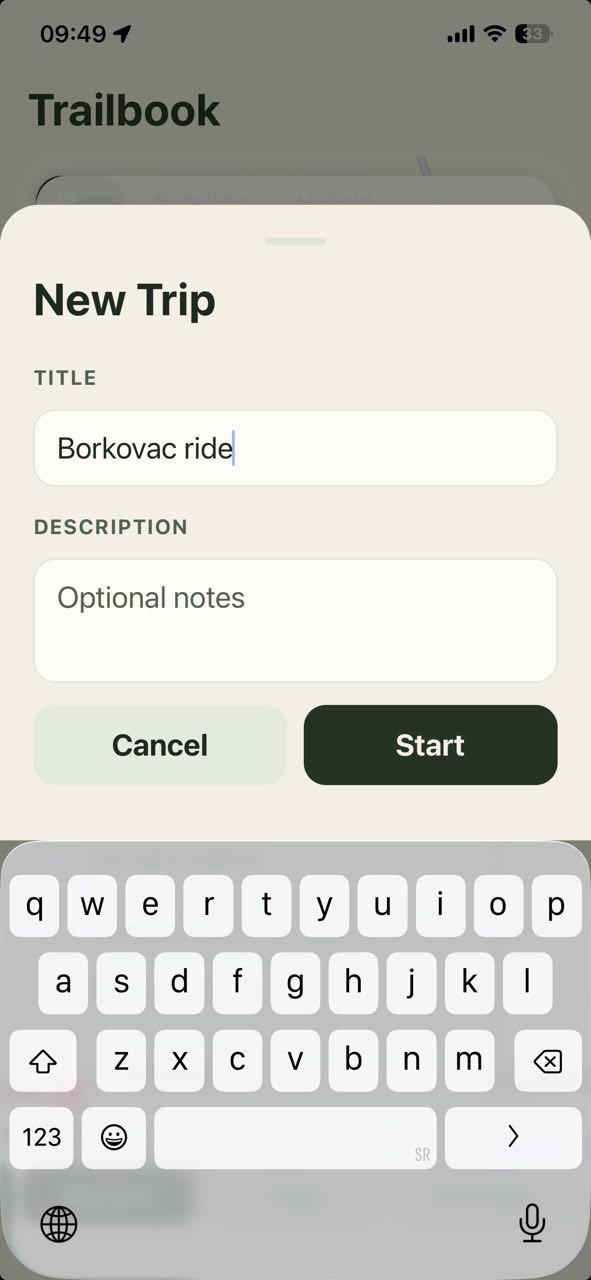
Open the Record tab and tap Start trip.
- 2
Name your trip and confirm. Keep location services enabled.
- 3
Choose Pause for a break and Resume to continue.
- 4
Tap Stop when finished. Your route appears under Trips.
Trail tipPause when you stop for a while or do not want a section included in the route.
⌖02 · HOW TOAdd a waypointMark a place worth remembering.+
- 1
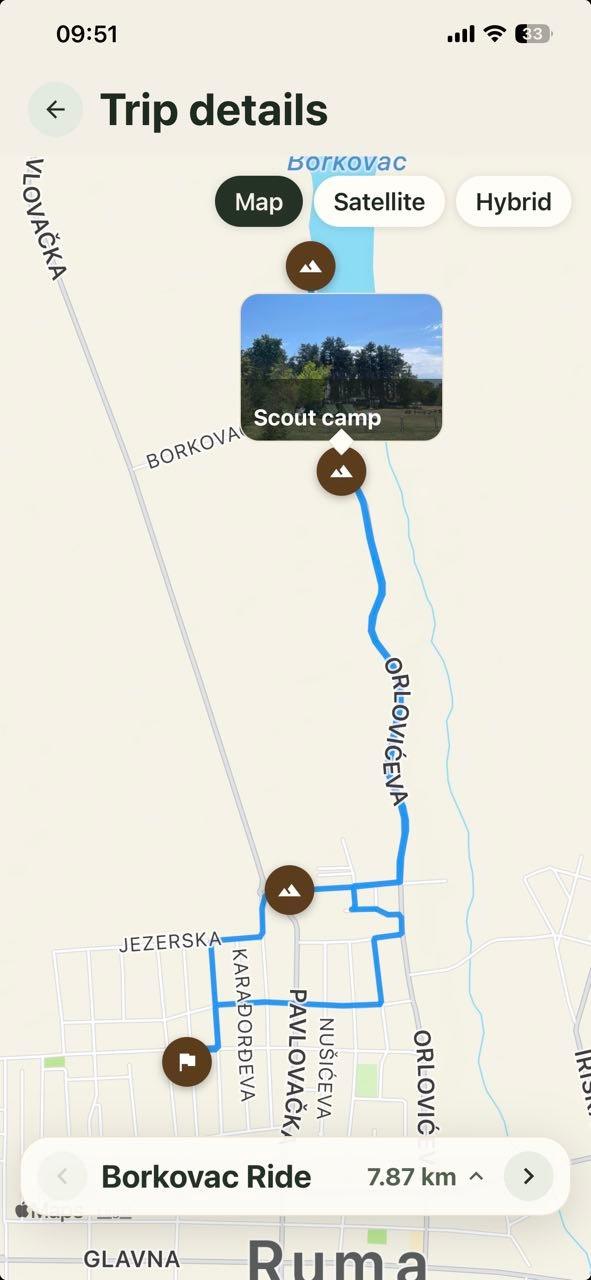
Choose the add-waypoint option while recording.
- 2
Select a category, enter a title and add an optional note.
- 3
Save it — your current location appears as a marker on the map.
Trail tipUse consistent names, such as “Spring — Stara planina” or “Customer — Novi Sad”.
▧03 · HOW TOTake or add a photoConnect a photo to the exact place and moment.+
- 1
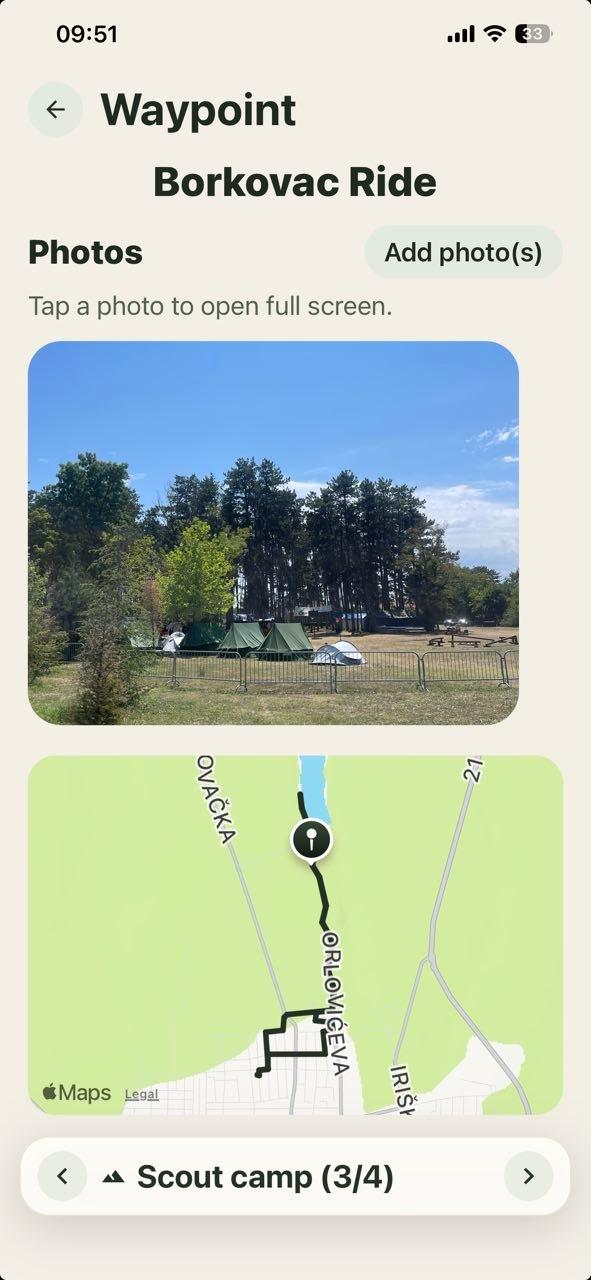
Open a waypoint while recording or from a finished trip.
- 2
Choose the camera for a new photo or the gallery for an existing one.
- 3
Grant access when your phone asks, then save the photo.
Trail tipCapture a trail marker, location detail or completed work — not only the scenery.
≋04 · HOW TOBrowse and find tripsFind a finished route, its content and statistics.+
- 1
Open Trips and stay on My trips.
- 2
Use filters when needed, then open the trip card.
- 3
Explore the route, movement segments, waypoints and photos.
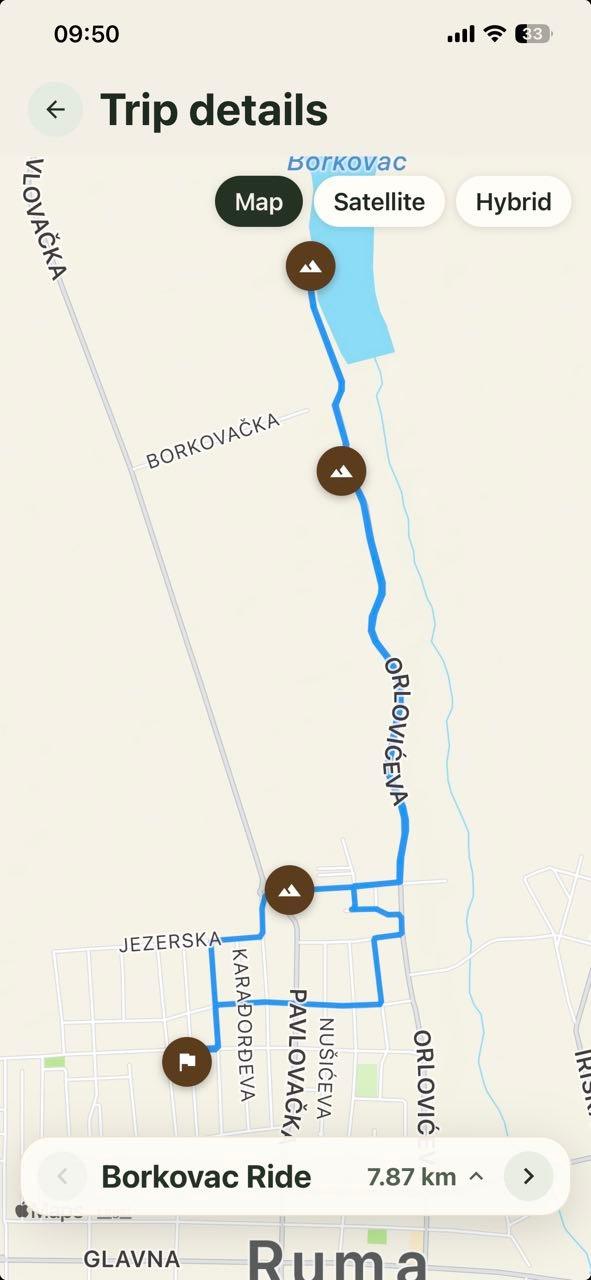
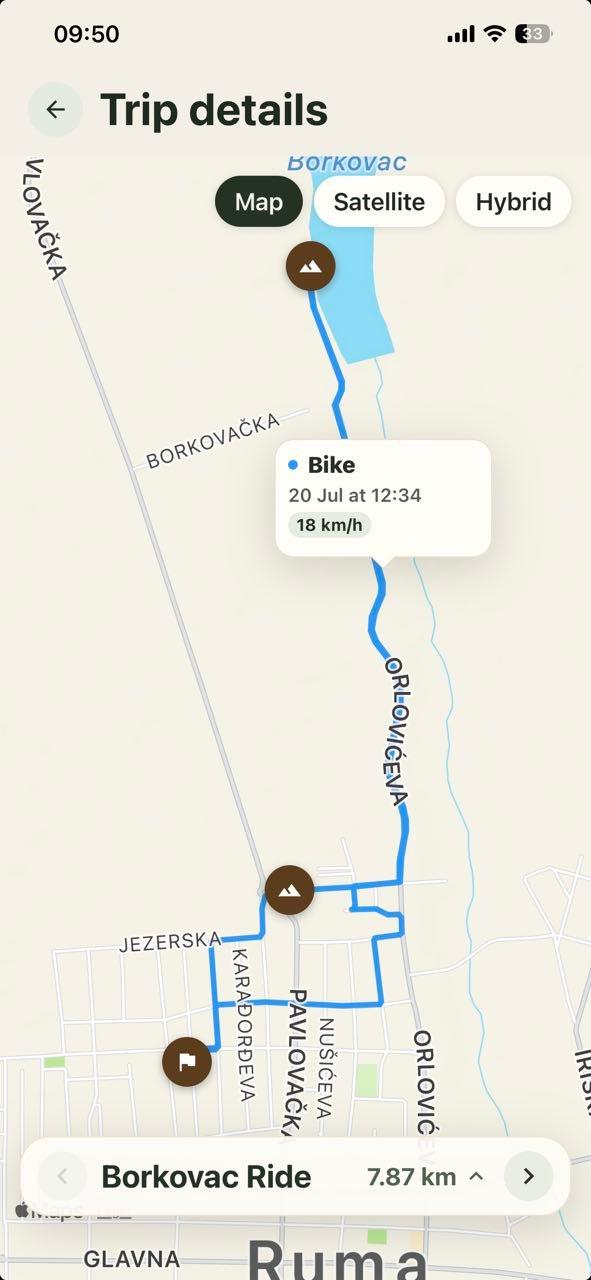
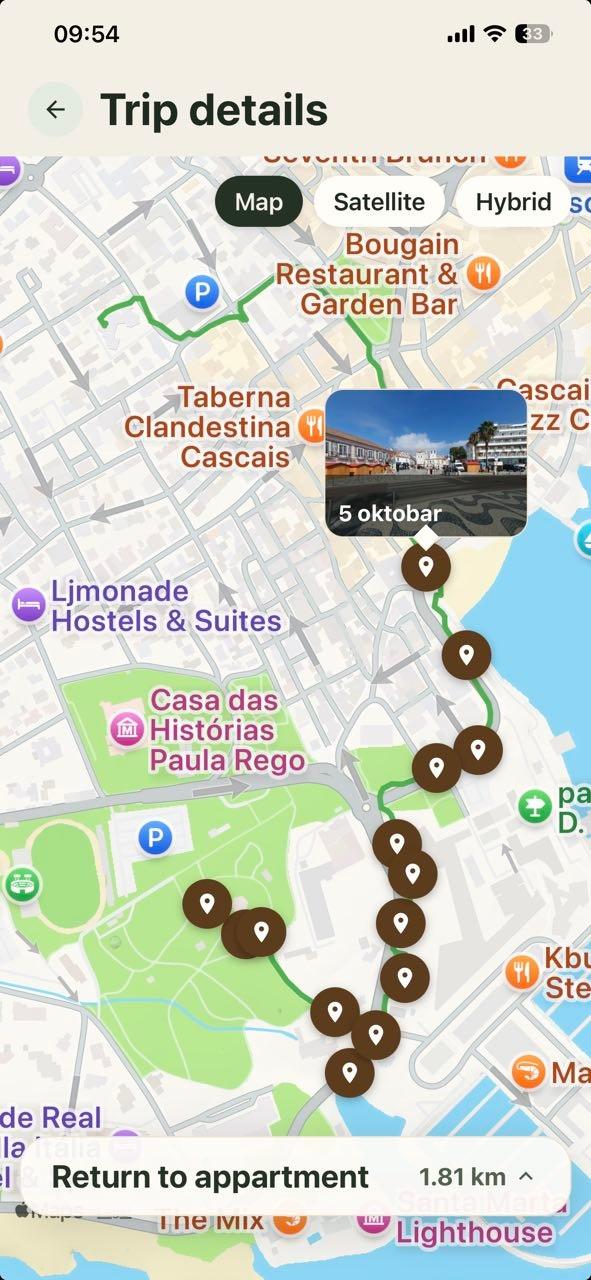
Trail tipA descriptive trip name makes it much easier to find later.
◫05 · HOW TOOrganize trips into groupsCombine routes into one story or project.+
- 1
Sync the trips you want to organize first.
- 2
Select them in Trips and tap Add to group.
- 3
Create a group or choose an existing one, then set their order.
Trail tipTry “Summer 2026”, “Fruška gora camp”, “September service calls” or “Belgrade–Niš route”.
↻07 · HOW TORestore data from the cloudRecover synced data missing from this device.+
- 1
Sign in with the same account you used before.
- 2
Open Settings → Cloud data → Restore missing data.
- 3
Keep the app open and online until the process finishes.
Trail tipRestore can only recover data that was previously synced to the cloud.
DIDN’T FIND YOUR ANSWER?